
DAO Lead
Keep the Roster up to date
Updated 24 Nov 2026
This guide helps the DAO Lead keep each member's details in the Roster correct.
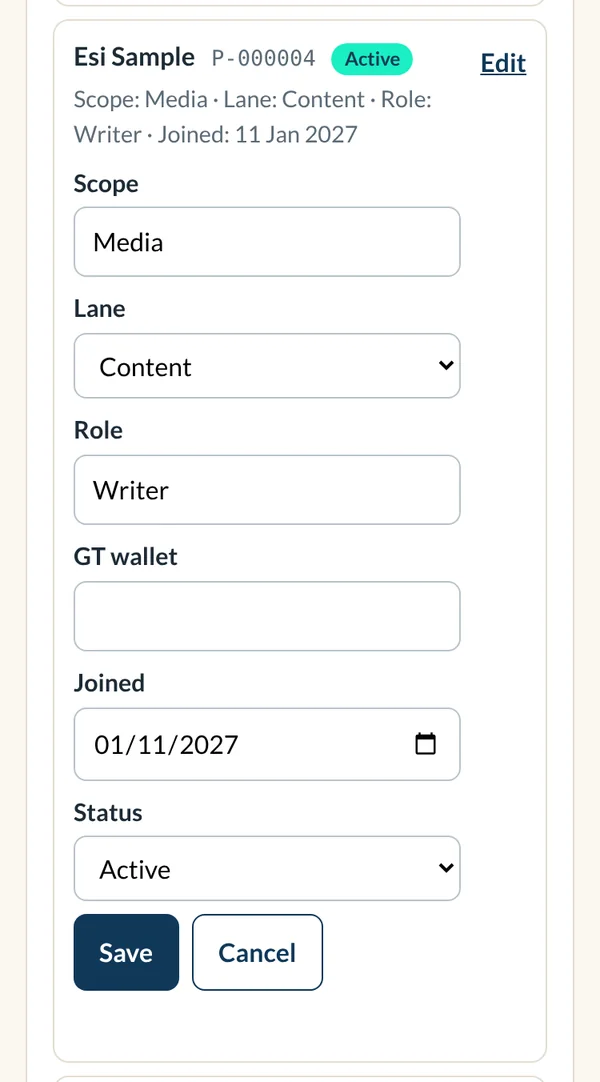
Steps
- Open your DAO and the Roster tab (or ☰ → DAO Lead → Roster).
- Find the member and tap Edit on their row.
- Change what you need: Scope, Lane, Role, GT wallet, Joined and Status.
- Tap Save. The row shows the new details. Tap Cancel to close without saving.
Good to know
- Only Kambria Ops add people to the DAO. If someone is missing, ask Kambria Ops.
- Lane is the member's lane in this DAO. Choose No lane if they have none yet.
- Role is a short free text about what the member does. Roles that give rights in the app are given on Lanes & roles.
- Joined matters: attendance scores count only events from this date. A late joiner is not scored for earlier events.
- Status is Active, Inactive, Left or Removed. Only active members can submit deliverables, own a lane or own a task. Inactive and Left members can still open and read the DAO; Removed members can't (unless they hold a role).
- When an inactivity case ends with the outcome Removed, the member's status changes to Removed by itself.
- Members tagged Returning were in another DAO before.
- Only Kambria Ops see members' emails.
If something goes wrong
- A GT wallet starts with 0x and has 40 more letters or numbers.
- Joined: Required. Every member needs a join date.
- You can’t change this. You are not the DAO Lead of this DAO.
- Couldn’t save. Check the fields and try again.