
Kambria Ops
Add people and send invitations
Updated 24 Nov 2026
This guide helps Kambria Ops add a person to the DAO Workbook, give them a person ID and send them a sign-in invitation.
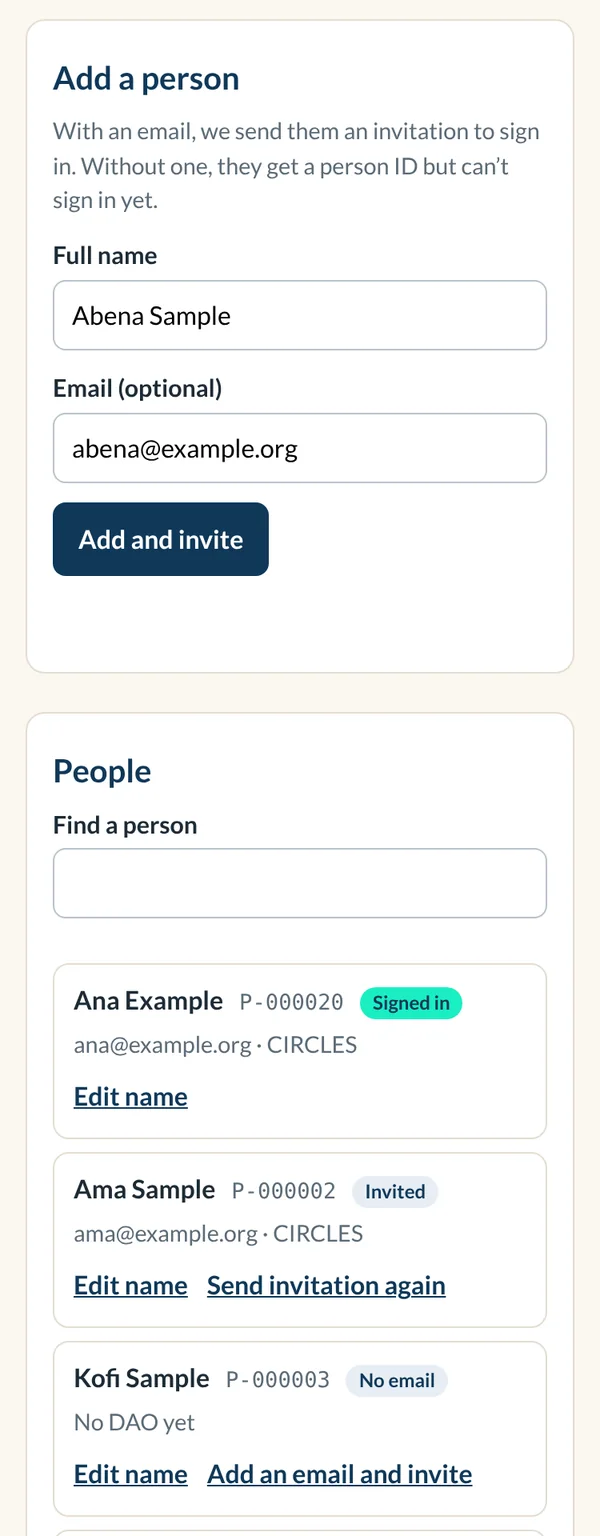
Steps
- On the home page, tap Manage people → (or ☰ → Kambria Ops → People).
- In Add a person, type the Full name.
- Type the person's email in Email (optional). If they have no email yet, leave it empty.
- Tap Add and invite.
- With an email, the page says, for example, P-000123 added. Invitation sent. The person gets an email with a link.
- Without an email, the page says, for example, P-000123 added. The person has a person ID but can't sign in yet.
- The person now shows in the list below, with their person ID, a status, their email and their DAOs (or No DAO yet).
- Next, add the person to a DAO's Roster. See "Add a DAO and its members".
The status of each person
| Status | What it means | What you can do |
|---|---|---|
| No email | The person has no email in the app. | Add an email and invite |
| Not invited yet | The person has an email, but no invitation was sent. This happens after a Workbook import. | Send invitation |
| Invited | The invitation was sent, but the person has not opened its link yet. | Send invitation again |
| Signed in | The person opened the invitation and can sign in. | Nothing to do. |
Send an invitation, or send it again
- Find the person. Type a name, person ID or email in Find a person.
- Tap Send invitation (status Not invited yet) or Send invitation again (status Invited).
- The page says, for example, Amina Yusuf: Invitation sent.
Give an email to someone who had none
- Find the person with status No email and tap Add an email and invite.
- Type the email in Email for … (with the person's name) and tap Add and invite.
- The email is linked to the person and the invitation is sent.
Fix a name
- Tap Edit name under the person.
- Type the New name and tap Save.
Good to know
- A person ID such as P-000123 is given once and never changes. It stays the same in every DAO.
- People are never deleted from the app.
- The email is kept by the sign-in service, not in the Workbook's tables. Only the person and Kambria Ops see it.
- One email belongs to one person only. You can't give a second email to a person who already has one.
- The person must open the link in the invitation email once before they can sign in. After that they sign in with a link each time.
- An invitation link stops working after about a day. If the person was too late, tap Send invitation again.
- If the email already has an account, no invitation is needed. The page says … added. This email already has an account, so they can sign in now. If you tap Send invitation again for a person who has already signed in, the page says This person has already signed in. They can sign in any time from the home page.
- Adding a person does not put them in a DAO. Add them to the DAO's Roster next.
- Every name change is kept in the change history.
If something goes wrong
- Full name: Required. Type the person's name.
- That doesn’t look like an email address. Check the email for typing mistakes.
- This email already belongs to another person. Use Find a person to find who has it. Don't add the same person twice.
- This person already has a different email.
- The invitation didn’t go through. Please try again.
- The invitation email couldn’t be sent. Check the app’s email settings, then try again. The app could not send the email. This can happen when too many emails were sent in one hour. Wait a while and try again. If it keeps happening, ask the person who manages the app's email settings.
- Something went wrong. Please try again. If it happens every time, tell the person who manages the app.
- Only Kambria Ops can open this page. or Only Kambria Ops can do this. You are not signed in as Kambria Ops.