
Kambria Ops
Add a DAO and its members
Updated 24 Nov 2026
This guide helps Kambria Ops add a new DAO to the app and add people to its Roster.
Steps
Add the DAO
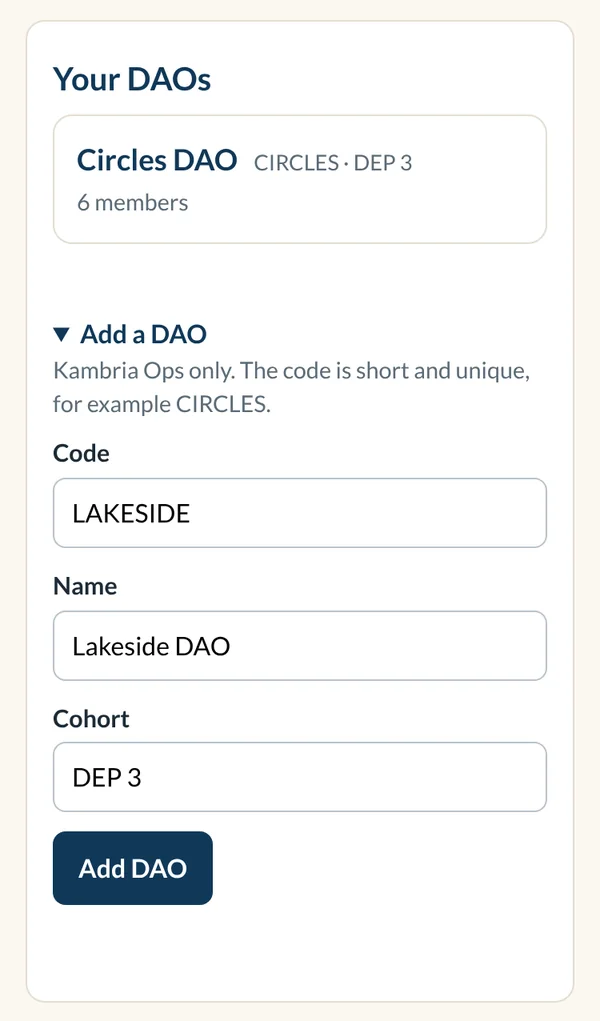
- On the home page, go to Your DAOs (or ☰ → Kambria Ops → Add a DAO).
- Tap Add a DAO to open the form.
- Type the Code: short and unique, for example CIRCLES. Use 2–16 capital letters, numbers or dashes.
- Type the DAO's Name.
- Check the Cohort. It starts as DEP 3; change it only if the DAO is in another cohort.
- Tap Add DAO. The page says, for example, CIRCLES added. and the DAO shows in Your DAOs.
Add members to its Roster
- Make sure each person is already in the app. If not, add them first on the People page. See "Add people and send invitations".
- Open the DAO and its Roster tab.
- In Add a member, choose the Person. The list shows everyone in the app who is not yet in this DAO, with their person ID.
- Set the Joined date. It starts as today. Use the day the person really joined the DAO.
- Tap Add to DAO. The page says Added. and the person shows in the Roster.
- Repeat for each member.
Good to know
- Only Kambria Ops add a DAO, and only Kambria Ops add people to a DAO's Roster.
- After you add a member, the DAO Lead can change their scope, lane, role, GT wallet, join date and status.
- The join date matters. A member who joined late is scored for attendance only from their join date.
- A new DAO starts with a seed fund of 0. Record its seed on Paid tasks & budget. See "Record the seed fund".
- Next steps for a new DAO: name its DAO Lead and Facilitator (see "Give the DAO Lead and Facilitator roles"), then the DAO Lead fills in DAO settings and the lanes.
- If the DAO already has a Workbook spreadsheet, you can import it instead of adding members one by one. See "Import a Workbook spreadsheet".
- Nobody is deleted from a Roster. When someone stops, the DAO Lead changes their status to Inactive, Left or Removed.
If something goes wrong
- Use 2–16 capital letters, numbers or dashes. The code has a space or another sign, or is too short or too long.
- Another DAO already uses this code. Choose another code.
- Name: Required. Type the DAO's name.
- Couldn’t save. Check the fields and try again.
- Person: Required. Choose a person first.
- Already in this DAO. The person is already in the Roster.
- You can’t change this. You are not signed in as Kambria Ops.
- The person you want is not in the Person list: add them on the People page first, then refresh the Roster page.