
Members
Sign in with an email link
Updated 24 Nov 2026
This guide helps members sign in to the DAO Workbook with a link sent to their email, and sign out again.
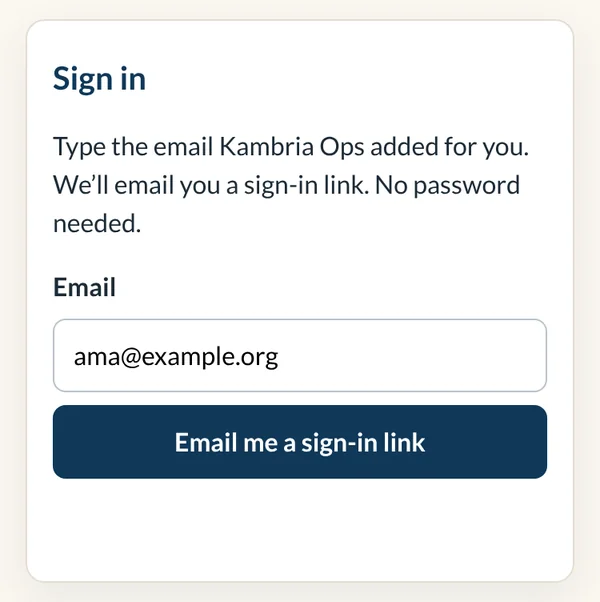
Steps
- First time only: open the invitation email from Kambria and tap its link once. This accepts the invitation. You cannot sign in before you do this.
- Go to the home page, daowb.kambria.io.
- In Sign in, type the email Kambria Ops added for you in Email.
- Tap Email me a sign-in link. The button says Sending… for a moment.
- The page says Check your email (…) and open the link to sign in. It can take a minute to arrive.
- Open the email and tap the link. The home page opens and you are signed in.
- At the top you see Welcome back and your first name, then Signed in as your email, your name, your Person ID and your roles. Below it is Your DAOs.
To sign out: tap ☰ (top right), then Sign out under Help. You go back to the home page.
Good to know
- There is no password and no sign-up. Only people Kambria Ops added can sign in.
- Use the same email every time: the one Kambria Ops added for you.
- Before the email is sent, the app checks that you are a person. Most of the time this happens by itself in a second or two. Sometimes a small box asks you to tap it.
- Sign out when you use a shared computer or phone.
If something goes wrong
- Type your email. The Email box is empty.
- That doesn’t look like an email address. Check the spelling.
- This email isn’t in the DAO Workbook yet. Ask Kambria Ops to add you. Either Kambria Ops have not added this email, or you have not yet opened the link in your invitation email. Open the invitation link first. If it has expired, ask Kambria Ops to send the invitation again.
- Please wait … seconds before asking for another link. You asked for a link a moment ago. Wait, then try again.
- Too many sign-in emails were asked for. Please wait a few minutes and try again.
- You seem to be offline. Check your connection and try again.
- We couldn’t check that you’re a person. Please try again. The message ends with a code. Try again; if it keeps failing, send a screenshot with the code to Kambria Ops.
- Something went wrong. Please try again.
- You’re signed in, but this email isn’t linked to a person yet. Ask Kambria Ops to add you to the Roster.
- We couldn’t load your details. Please refresh the page.
- The email does not arrive: wait a minute and look in your spam folder. Then ask for a new link.