
Lane owners
Your lane's boundary and decision rights
Updated 24 Nov 2026
This guide helps lane owners write down what their lane owns and what the pair may decide without asking.
Steps
- Open your DAO and the Lanes & roles tab (or ☰ → Lane owners → Lanes & roles).
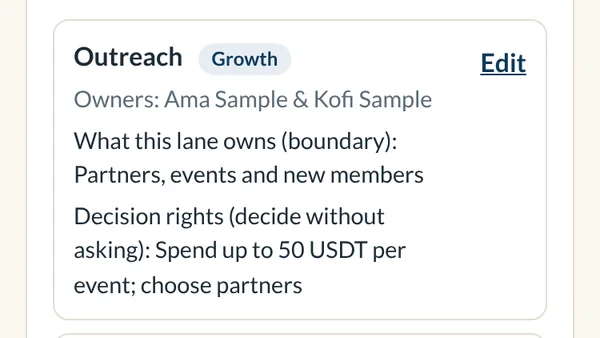
- In the Lanes card, find your lane. It shows Owners: with both names.
- Tap Edit under your lane. The form below the list fills with the lane's details.
- Write What this lane owns (boundary): the work, channels or results that belong to your lane.
- Write Decision rights (decide without asking): what you two decide alone, for example small spending or who joins a task.
- Leave every other field as it is.
- Tap Save changes. The page says Saved. and the lane shows the new text.
Good to know
- A lane is owned by a pair: Owner A and Owner B. They are two different people, and both are active members of the DAO.
- As an owner, you can change only the boundary and the decision rights. The DAO Lead and Kambria Ops change the lane's name, scope, owners and the onboarding mark, and they hide lanes.
- Every DAO has one onboarding lane, marked Onboarding. If no lane is marked, the page says Every DAO includes an onboarding lane. Mark one lane as the onboarding lane. Ask your DAO Lead to mark it.
- Each text box takes up to 600 characters.
- Everyone in the DAO can read the lanes. Every change is kept in the change history.
- Tap Cancel to close the form without saving.
If something goes wrong
- A lane’s owners can change only its boundary and decision rights. You changed another field. Tap Cancel, open the form again and change only the two text boxes.
- You can’t change this. You are not an owner of this lane. Check Owners: under the lane.
- Couldn’t save. Check the fields and try again. Check your connection and try again.