
Facilitator
Audit the Cashbook
Updated 24 Nov 2026
This guide helps the Facilitator audit each Cashbook line the Bookkeeper records.
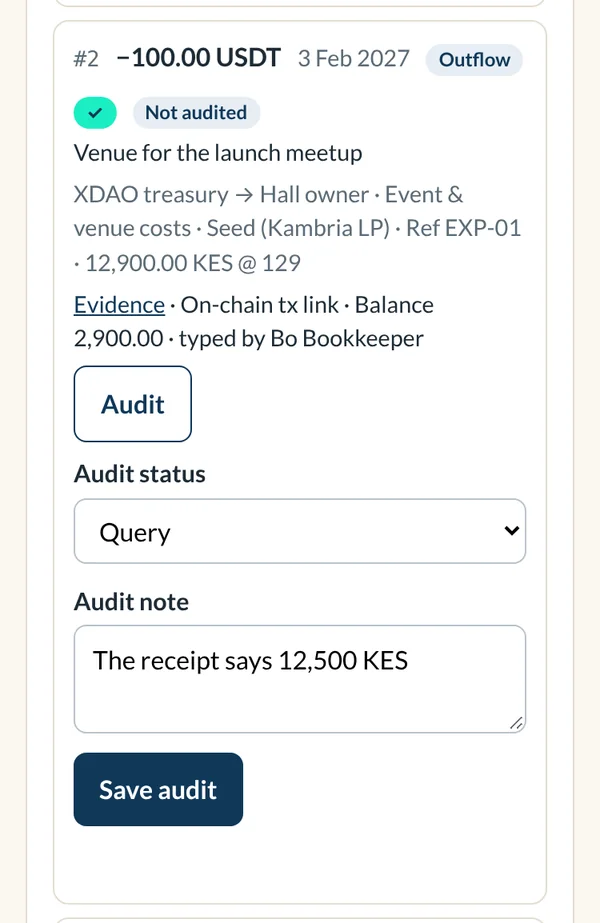
Steps
- Open your DAO and the Cashbook tab (or ☰ → Facilitator → Cashbook). Make sure Lines is chosen.
- In Show, choose Not audited yet.
- Read the line: the amount, the date, who paid and who received, the categories, the Auto-check tag and the Evidence link. Open the evidence.
- Tap Audit under the line.
- Choose the Audit status:
- OK: the line is right and has its evidence.
- Query: you have a question.
- Missing doc: the evidence is missing.
- Amount mismatch: the amount does not match the evidence.
- Corrected: the mistake has been put right.
- For anything other than OK, say what is needed in Audit note.
- Tap Save audit. The line shows the status and your name, for example Query · your name.
- Later, in Show, choose Queried by the audit. When the Bookkeeper has fixed a line, it shows Resolved with a date. Audit it again.
Good to know
- OK and Corrected lock the line for everyone. After that, a mistake is fixed only with a correcting line, which shows Corrects # and the line number.
- Until then you can change the audit status as often as needed.
- Nobody audits a line they typed. If you also typed lines, someone else must audit them.
- Only the Facilitator audits. The Bookkeeper records and fixes lines.
- An Auto-check that is not ✓ means the line is incomplete. Use Auto-check not ✓ in Show to see them.
- Every line must be OK or Corrected before you can close the month. See "Close the month".
- Lines are never deleted, and every change is kept in the change history.
If something goes wrong
- Nobody audits a line they typed.
- This line is audited OK, so it is locked. Add a correcting line instead. The line is already OK or Corrected.
- That month is closed and locked. Record a correcting line in an open month. Unlock the month first if the audit must change (see "Close the month").
- Only the Facilitator audits.
- Couldn’t save. Check the fields and try again.