
Kambria Ops
Scoring rules and the shared event calendar
Updated 24 Nov 2026
This guide helps Kambria Ops set a DAO's attendance scoring rules and keep the events shared by every DAO in a cohort.
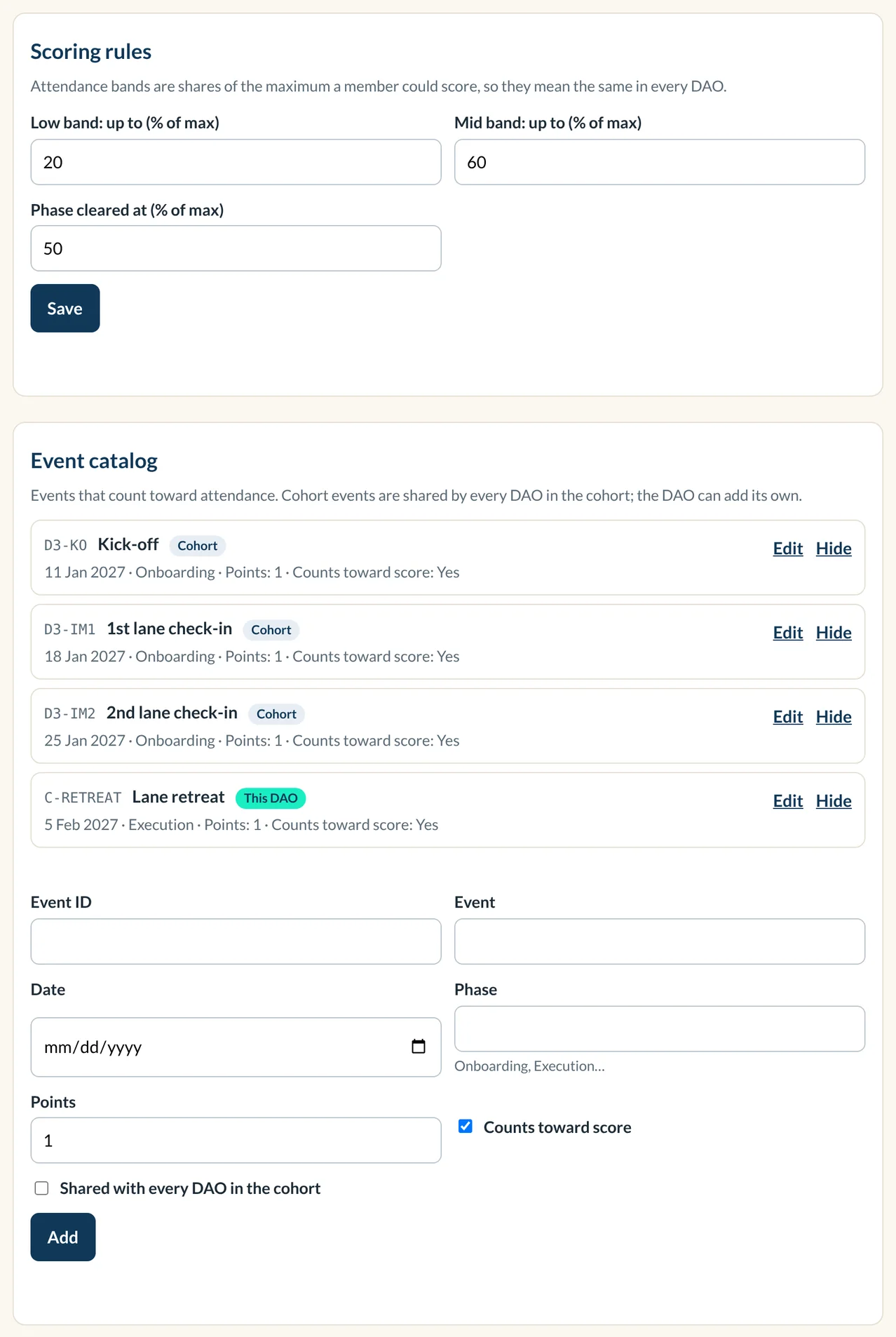
Steps
Set the scoring rules
- Open the DAO's DAO settings (☰ → Kambria Ops → DAO settings).
- Go to Scoring rules. The values are percentages of the maximum score a member could get.
- Type the Low band: up to (% of max), for example 20.
- Type the Mid band: up to (% of max), for example 60. Above the Mid band is High.
- Type the Phase cleared at (% of max), for example 50.
- Tap Save. The page says Saved.
Add a shared event for the cohort
- In the same DAO settings, go to Event catalog.
- Type the Event ID, for example D3-SY4, and the Event name. Each Event ID is used once.
- Choose the Date, type the Phase (for example Onboarding or Execution) and the Points.
- Leave Counts toward score ticked if the event counts for attendance.
- Tick Shared with every DAO in the cohort.
- Tap Add. The event shows with the tag Cohort.
Change or hide a shared event
- Tap Edit under the event, change the fields and tap Save changes. Tap Cancel to stop.
- To take an event out of the catalog, tap Hide. The page asks Hide this row? It stays in the change history. Confirm.
Good to know
- Each DAO has its own scoring rules, so set them in each DAO. A new DAO starts with Low 20, Mid 60 and Phase cleared 50.
- Only Kambria Ops change the scoring rules. Other people see Set by Kambria Ops.
- The Attendance page uses these rules for each member's band and to say whether a phase is cleared.
- Events tagged Cohort are shared by every DAO in the same cohort. Only Kambria Ops change them. A change shows in all those DAOs at once.
- Events tagged This DAO belong to one DAO. Its DAO Lead adds and changes them.
- You choose Shared with every DAO in the cohort only when you add an event. It can't be switched later.
- The DEP 3 cohort starts with 8 shared events from the Workbook's Config tab.
- Nothing is deleted. A hidden event stays in the change history.
If something goes wrong
- The Low band must be below the Mid band, and every value between 1 and 100.
- Use letters, numbers and dashes, for example D3-KO. The Event ID has a space or another sign.
- This event ID is already used. Choose another Event ID.
- Event ID: Required. (or another field name) Fill in every field that is needed.
- Couldn’t save. Check the fields and try again.
- You can’t change this. Only Kambria Ops change scoring rules and shared events.
- There is no Edit button on a Cohort event: you are not signed in as Kambria Ops.