
Lane owners
Plan tasks for your lane
Updated 24 Nov 2026
This guide helps lane owners add, change and hide the tasks of their lane in the Workplan.
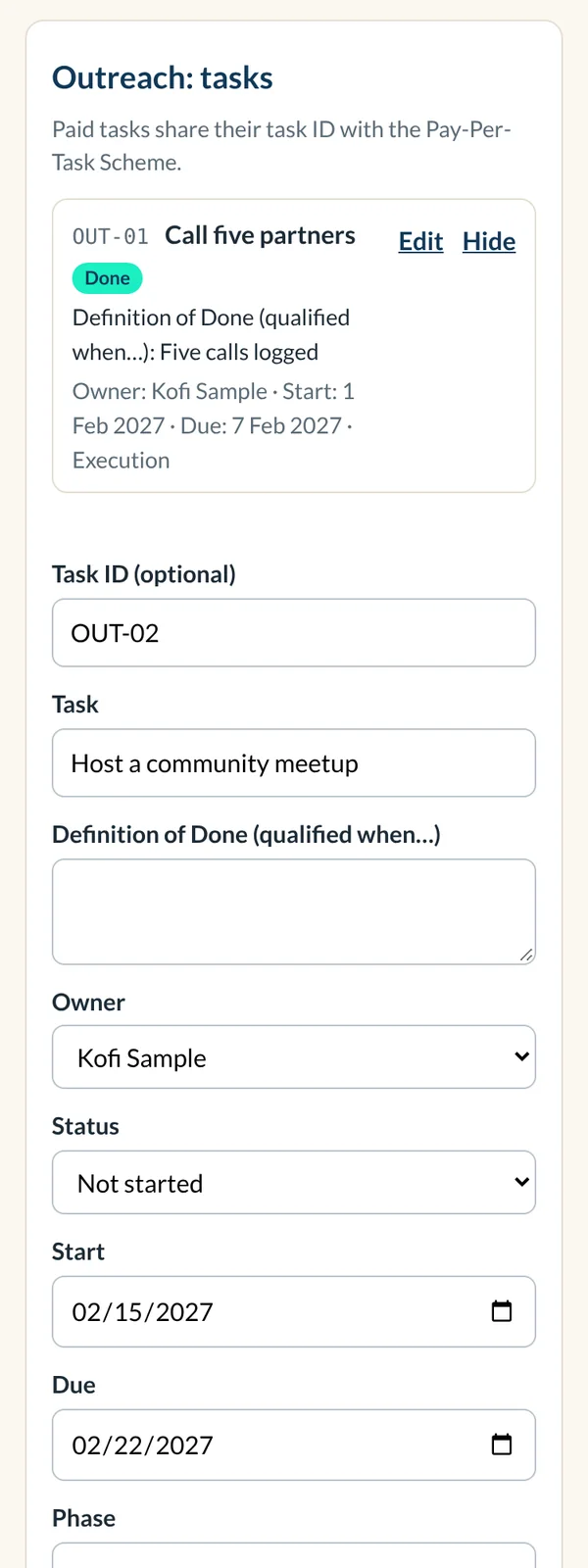
Steps
- Open your DAO and the Workplan tab (or ☰ → Lane owners → Workplan). Make sure List is chosen.
- Find the card with your lane's name and tasks. The form is at the bottom of the card.
- Fill in the task:
- Task ID (optional): a short code such as OUT-01. Paid tasks need it, because they share their task ID with the Pay-Per-Task Scheme.
- Task: what has to be done.
- Definition of Done (qualified when…): how anyone can tell the task is finished.
- Owner: the member who does the task. Leave (nobody yet) if nobody has taken it.
- Status: Not started, In progress, Done or Blocked.
- Start and Due: the dates.
- Phase: for example Onboarding or Execution.
- Activity: a shared goal of several lanes, if this task is part of one. Otherwise leave None.
- Tap Add. The page says Saved. and the task shows in your lane's list.
- To change a task, tap Edit under it, change the fields and tap Save changes.
- To remove a task you no longer plan, tap Hide and confirm.
- Tap Timeline to see every task as a bar from its start to its due date, week by week.
Good to know
- Write each task so that anyone could do it: one owner and a clear Definition of Done.
- The Workplan is the plan. Whether a deliverable met its Definition of Done is checked later, in Contributions.
- A task ID uses letters, numbers, dots, dashes or underscores. It must be unique in the DAO, also among hidden tasks.
- The owner of a task must be an active member of the DAO. The owner can change only the status of their task, with My status.
- The due date can't be before the start date. A task with only one date shows as one day on the Timeline.
- The Timeline starts each week on Monday and shows at most 26 weeks. Tasks with no dates are listed under Tasks without dates.
- Only the DAO Lead and Kambria Ops add activities. You can choose an existing one for your tasks.
- You can change only your own lane's tasks. Hide does not delete: the task stays in the change history.
If something goes wrong
- Task: Required. Name the task before you save.
- Use letters, numbers, dots, dashes or underscores, for example OUT-01.
- Another task in this DAO already uses this task ID. Choose another task ID.
- The due date can’t be before the start date.
- The owner must be an active member of the DAO (see Roster). Choose someone else, or ask the DAO Lead to check the Roster.
- You can’t change this. This card belongs to another lane.
- The page says Add lanes first (Lanes & roles), then each lane adds its tasks. The DAO has no lanes yet. Ask your DAO Lead.