
Kambria Ops
Import a Workbook spreadsheet
Updated 24 Nov 2026
This guide helps Kambria Ops bring a DAO's DEP 3 Workbook spreadsheet into the app, so nobody has to type it again.
Steps
- Make sure the DAO is already in the app. If not, add it first. See "Add a DAO and its members".
- In Google Sheets, open the DAO's Workbook and choose File → Download → Microsoft Excel (.xlsx).
- In the app, open the DAO and choose ☰ → Kambria Ops → Import a Workbook. This opens the DAO's Workbook file page.
- In Import a Workbook, choose the file in Workbook file (.xlsx).
- Tap Read the file. Nothing is saved yet.
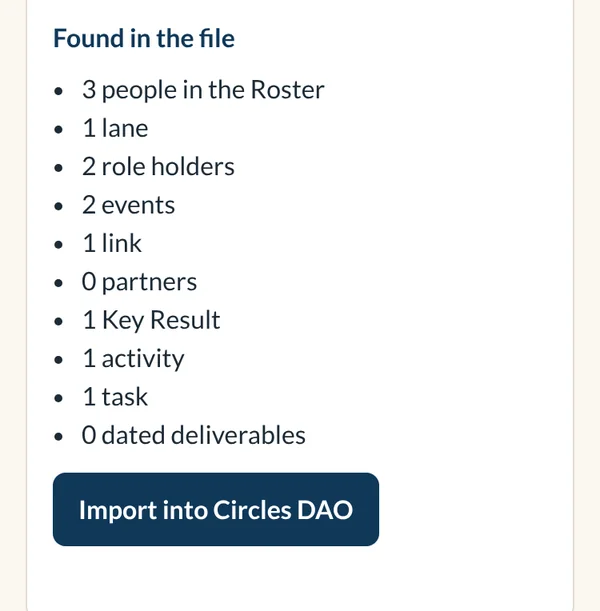
- Check Found in the file: how many people in the Roster, lanes, role holders, events, links, partners, Key Results, activities, tasks and dated deliverables were found.
- Read Notes on the file, if there are any. They name rows that can't be read as they are.
- If the numbers look right, tap Import into … (with the DAO's name). The page shows each step, for example Importing… People and Roster…
- When it says Import finished., read What changed. Under Skipped (fix in the Sheet or the app, then import again) you see the rows that were not saved, with the reason.
- Fix what was skipped in the Sheet or in the app. Then import again if needed.
- Send the invitations. New people are Not invited yet. See "Add people and send invitations".
What is imported
The app reads these tabs: Config, DAO Master, Roster, Owned Lanes & Roles, OKR, Workplan and Timeline.
- Config: the DAO name, payment model, scoring rules, the seed (only if the DAO has no seed entry yet) and the DAO's own events. Cohort events already in the app are kept as they are.
- DAO Master: type, mission, on-chain details, the file library (links starting with https:// only) and partners.
- Roster: people and their membership: scope, lane, role, join date and status. A person is matched by email or person ID. Someone new to the app gets a person ID and a sign-in account, but no invitation email.
- Owned Lanes & Roles: lanes with their owners, boundary and decision rights; the DAO Lead, Bookkeeper, Order Handler, Operator and Organizer. The Facilitator is not imported.
- OKR: the Objective on each axis and each lane's Key Results.
- Workplan and Timeline: activities, tasks and their start and due dates.
Good to know
- Only Kambria Ops can import.
- Importing adds and updates; it never deletes.
- You can import the same file again after fixing the Sheet. Nothing is added twice: people, lanes, tasks, links, partners, events, Key Results and activities that are already in the app are matched and updated, not copied. If nothing is new, the page says Nothing new: the app already matches this file.
- No invitation emails are sent during an import. The page reminds you: People new to the app get a person ID but no invitation email. Send invitations later from People.
- A lane owner or task owner must be an active member of the DAO. If not, the field is left empty and a note says why.
- A lane that is named in the Roster, OKR or Workplan but is missing from the Lanes table is added without owners.
- The file is read in your browser. Only the rows saved to the app are kept, not the file.
- The same page also has Download as a Workbook. When Kambria Ops download it, the file includes emails.
If something goes wrong
- Choose an .xlsx file (Google Sheets: File → Download → Microsoft Excel).
- This file couldn’t be read. Is it an .xlsx Workbook?
- No Workbook tabs were found (Config, DAO Master, Roster, Owned Lanes & Roles, OKR, Workplan, Timeline). Check that the tabs keep their Workbook names.
- The file says dao_code …, but you are importing into …. Check it is the right file for this DAO.
- … is not in the Roster or the app; left empty. A name in the file doesn't match anyone. Add the person to the Roster tab of the Sheet, or fix the spelling.
- … is not an active member of the DAO; left empty. Check the person's status in the Roster tab of the Sheet, then import again.
- … has no lane; not imported. Give the Key Result or task a lane in the Sheet.
- Scoring rules not imported: the Low band must be below the Mid band, both under 100%.
- The file’s seed fund is … USDT but the app has … USDT. Add a seed entry on Paid tasks & budget if it changed. See "Record the seed fund".
- Couldn’t save. Check the fields and try again. The import stopped. Try Import into … again; rows already saved are not added twice.
- Only Kambria Ops can import. You are not signed in as Kambria Ops.