
Members
Your DAOs and the menu
Updated 24 Nov 2026
This guide helps members open their DAO and move between its pages with the tab row and the ☰ menu.
Steps
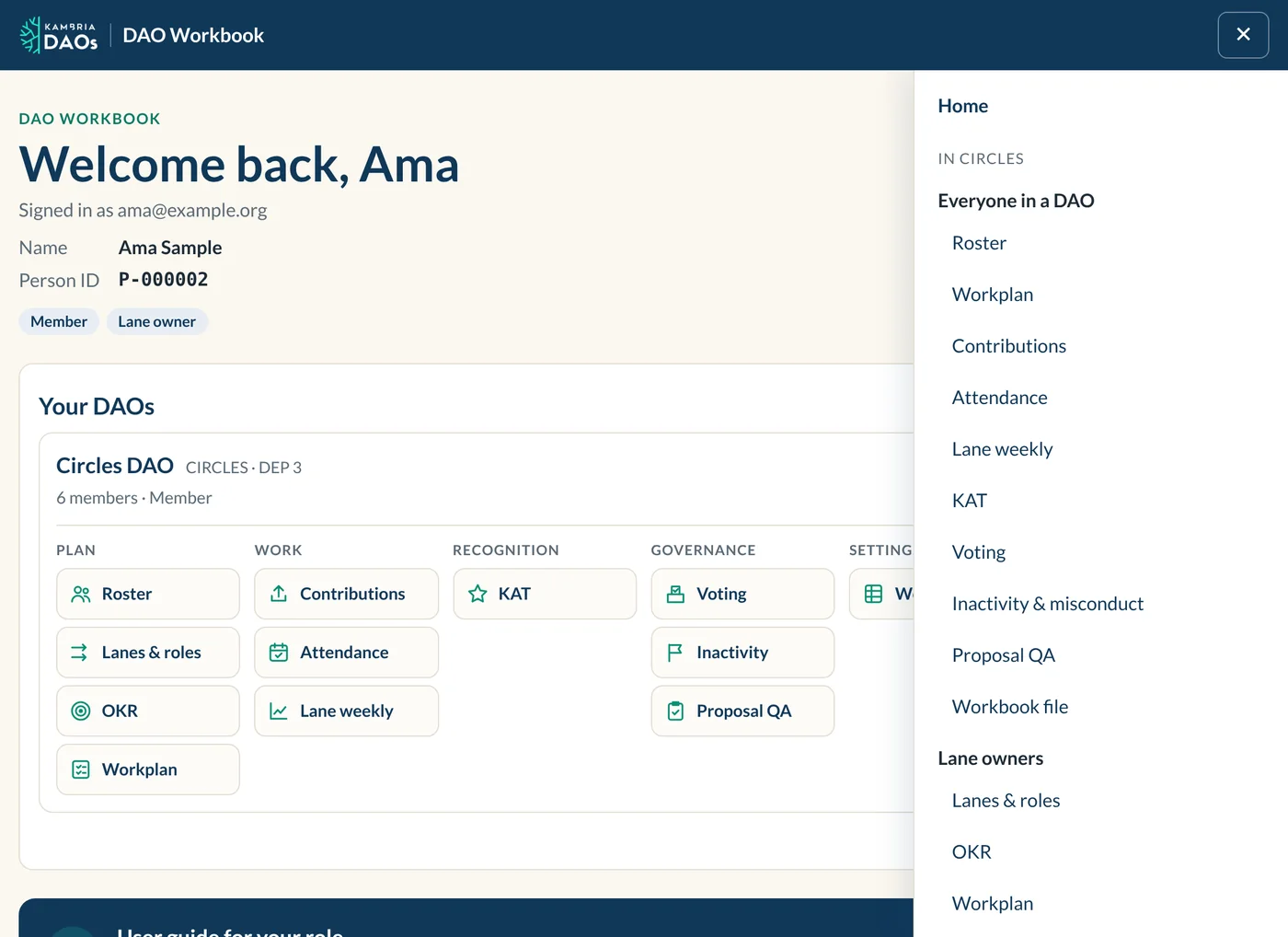
- Sign in. On the home page, find Your DAOs.
- Each DAO shows its name, its code and cohort (for example CIRCLES · DEP 3), then a line such as 3 members · Member. That line also names any role you hold in the DAO, such as DAO Lead or Bookkeeper.
- Tap the DAO's name to open its DAO settings. Or tap one of the tiles below it, grouped Plan, Work, Money, Recognition, Governance and Settings & file. You see only the pages your roles use in that DAO.
- On every page of a DAO, the tab row under the DAO's name goes to the other pages: Settings, Roster, Lanes & roles, OKR, Workplan, Attendance, Contributions, Lane weekly, Paid tasks & budget, Cashbook, KAT, Voting, Inactivity, Proposal QA, Workbook file. On a phone, swipe the row sideways.
- Or tap ☰ (top right). With a DAO open, the menu starts with In and the DAO's code. Under Everyone in a DAO you find Roster, Workplan, Contributions, Attendance, Lane weekly, KAT, Voting, Inactivity & misconduct, Proposal QA and Workbook file.
- To go back to the list of your DAOs, tap ← Your DAOs at the top of a DAO page, or Home in the ☰ menu.
Good to know
- The ☰ menu is arranged by role. It shows only the groups of the roles you hold, for example Lane owners, DAO Lead, Bookkeeper, Organizer or Facilitator. Help (with Privacy and Sign out) is always there.
- The menu's links go to the DAO you have open. If you are in only one DAO, they go to that DAO.
- In several DAOs with none open, the menu says Open a DAO from Your DAOs first; these links then go to that DAO.
- You can open every page of your DAO. On most pages you can read but not change things; a note at the top says who can change them.
- The Hub: every DAO at a glance link shows on the home page only for Kambria Ops and Facilitators. Members don't see it.
- Signed out, the home page shows How it works and a card for each role. Each card opens that role's part of this guide.
- You see a DAO while you are a member of it (Active, Inactive or Left) or hold a role in it. A member with the status Removed no longer sees it, unless they hold a role in it. If your status is not Active, the line says so, for example Member (Inactive).
If something goes wrong
- You aren’t in a DAO yet. Ask your DAO Lead or Kambria Ops to add you.
- This DAO doesn’t exist, or you aren’t in it. Check the DAO code in the link, or open the DAO from Your DAOs.
- We couldn’t load this DAO. Please refresh the page.
- We couldn’t load your details. Please refresh the page.
- The menu shows Loading your roles… for a long time: refresh the page.