
Members
Read the lane weekly reports
Updated 24 Nov 2026
This guide helps members read what each lane did this week, what is blocking it, and how long each member has been quiet.
Steps
- Open your DAO and the Lane weekly tab (or ☰ → Everyone in a DAO → Lane weekly).
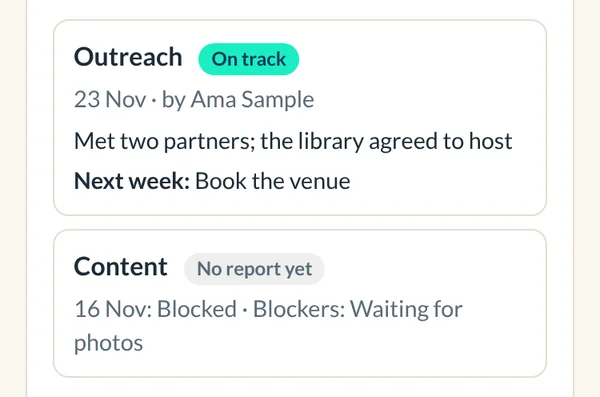
- Lanes this week shows every lane. A lane with a report shows its status (On track, At risk or Blocked), who wrote it and the summary, with Blockers, Support needed and Next week when filled in.
- A lane without a report this week shows No report yet, with the date and status of its last report.
- Days since last activity lists every active member with their Lane, Last activity and Days.
- All reports lists every report, newest first. Choose a lane in Lane to see only that lane's reports.
Good to know
- Each lane's owners write one report a week. They can change it until the Wednesday after the week. Members can read every lane's reports.
- Last activity is the later of two dates: the last held event you joined, and the day the last deliverable you have a share in was submitted (withdrawn ones don't count). If you have no activity yet, the days are counted from the day you joined the DAO, and Last activity shows Not yet.
- After 14 days or more without activity, the number of days is shown in red.
- Read the two together: a quiet member plus a named blocker is something to act on.
- The count starts again when you join an event or submit a deliverable with your share.
- The members who have been quiet longest are listed first.
If something goes wrong
- No reports yet. No lane has written a report.
- Your Last activity looks wrong: check your ticks in Attendance and your deliverables in Contributions. Ask the Facilitator to fix a missing attendance tick.
- We couldn’t load this DAO. Please refresh the page.